
Highlights
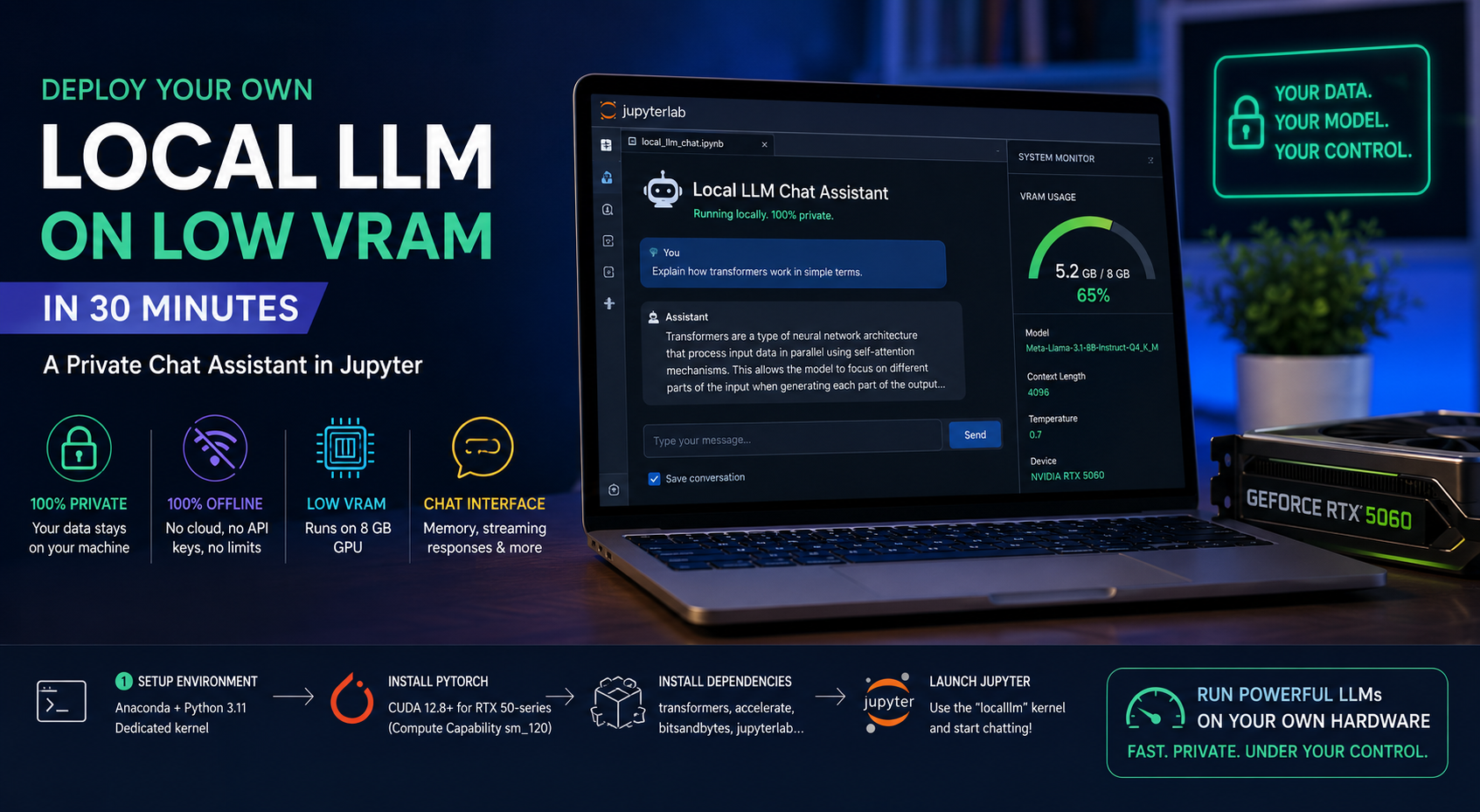
- Run a real large language model on your own machine, entirely offline, with as little as 8 GB of GPU memory.
- No cloud, no API keys, no data leaving your computer.
- Interactive chat widget with conversation memory and a live VRAM gauge
Cloud chat assistants are convenient, but they come with trade-offs: your queries leave your machine, you depend on someone else’s uptime and pricing, and the model’s behaviour can change under you without warning. For research, sensitive data, or simply full control, running a model locally is an appealing alternative. The good news is that modern quantization has made this accessible on modest consumer hardware. A capable 7–8 billion parameter model now fits comfortably on an 8 GB laptop GPU. This tutorial walks through the entire process end to end, using an NVIDIA Blackwell card (RTX 5060, 8 GB) as the worked example — though the approach applies to any recent NVIDIA GPU.
1. Setting Up the Environment: Anaconda, a Dedicated Kernel, and the Right CUDA
Everything starts with a clean, isolated environment. Mixing deep-learning dependencies into your base Python installation is a recipe for version conflicts, so we create a dedicated Conda environment for this project alone. If you have followed our earlier Anaconda setup guide, this will feel familiar.
Open the Anaconda Prompt and create a fresh environment:
conda create -n localllm python=3.11 -y
conda activate localllm
The single most important, and most overlooked, step is installing the correct build of PyTorch for your specific GPU. This is where most local-LLM attempts fail silently. NVIDIA GPUs each have a “compute capability” (an architecture identifier such as sm_86, sm_90, sm_120), and a PyTorch binary only works if it was compiled with kernels for your card’s architecture. Install the wrong build and you will see CUDA reported as “available” while every actual GPU operation crashes — a particularly confusing failure mode.
The newest Blackwell cards (the RTX 50-series, including our RTX 5060) use compute capability sm_120, which older PyTorch wheels do not support. For these cards you need a build compiled against CUDA 12.8 or newer:
pip install torch --index-url https://download.pytorch.org/whl/cu128
If you are on an older card (RTX 30- or 40-series), the standard CUDA 12.x wheels are fine. The general rule: match the PyTorch CUDA build to your GPU generation, and when a brand-new card isn’t yet supported in the stable channel, reach for the nightly build of the matching CUDA version.
Now verify it properly. Do not trust torch.cuda.is_available() alone — it can return True even when no compatible kernels exist. Instead, force an actual computation onto the GPU:
python -c "import torch; x=torch.randn(1000,1000,device='cuda'); y=x@x;
print('OK', y.device, torch.cuda.get_device_capability(0))"
A clean OK cuda:0 (12, 0) with no warnings means real GPU compute is working. That is your green light. With the engine confirmed, install the rest of the stack and register the environment as a dedicated Jupyter kernel so the notebook always uses exactly these packages:
pip install numpy transformers accelerate bitsandbytes jupyterlab ipywidgets ipykernel
python -m ipykernel install --user --name localllm --display-name "Python (localllm)"
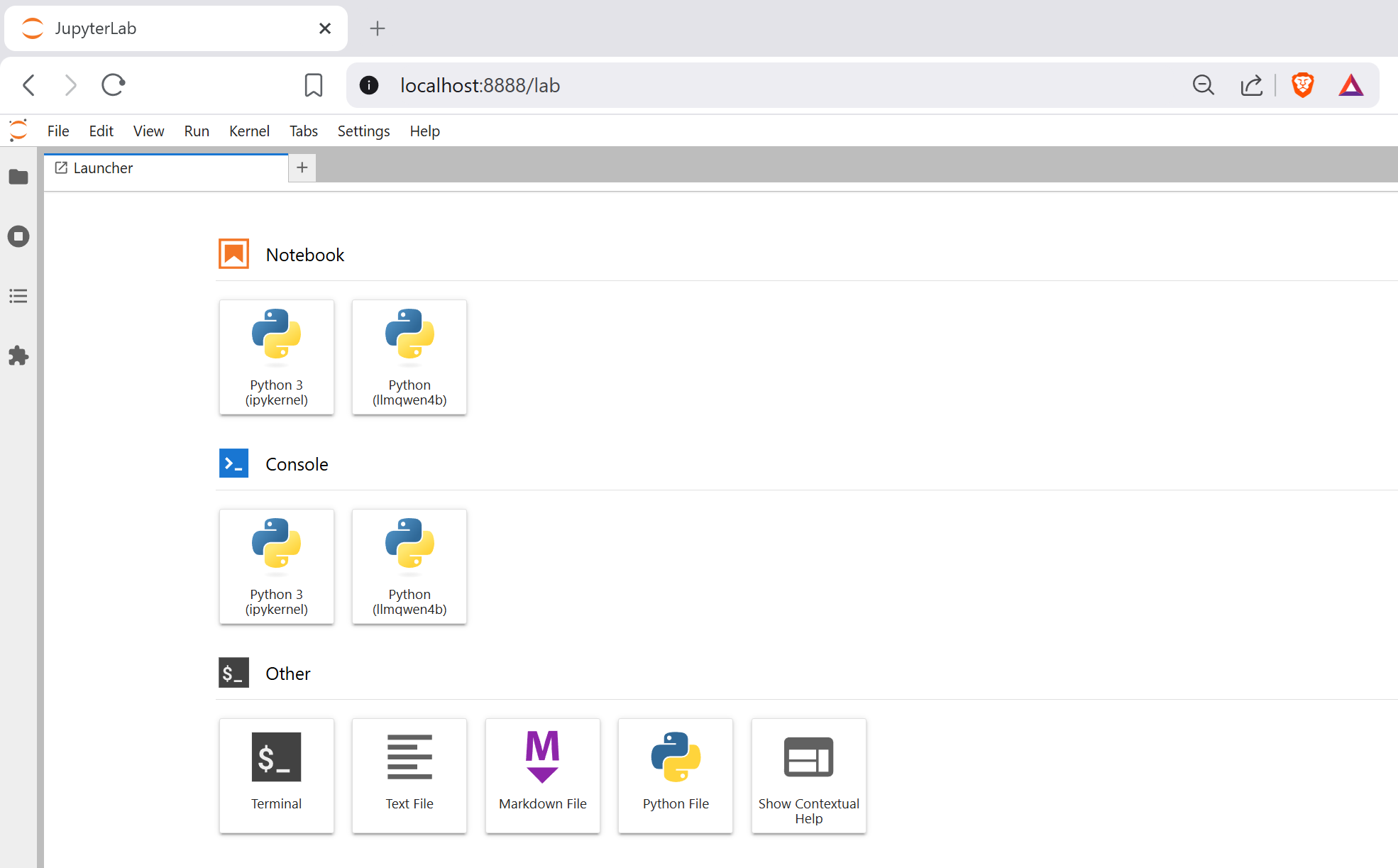
Finally, launch JupyterLab from your project directory so your notebook is rooted where you want it rather than in a system folder:
cd C:\Users\you\Documents\projects
jupyter lab
Open the localhost address provided by jupyter on your navigator and once inside, select the “Python (localllm)” kernel. We recommend JupyterLab over the classic Notebook here: it renders interactive widgets reliably out of the box, which matters for the chat interface we build in Section 3.
2. Choosing and Loading the Model: Hugging Face and 4-Bit Quantization
A model’s weights have to live in memory, and for modern LLMs they are large. A 7–8 billion parameter model in full 16-bit precision needs roughly 14–16 GB — too much for an 8 GB card. The solution is quantization: storing each weight in 4 bits instead of 16. This shrinks an 8B model to around 5 GB with only a minor quality cost, which is what makes local inference on consumer hardware possible at all.
We use Hugging Face Transformers together with the bitsandbytes library, which quantizes the model to 4 bits on the fly as it loads. This keeps everything inside your Python kernel — the model object lives in your notebook, you load directly from Hugging Face with optional token authentication, and you can inspect internals if you wish. Hugging Face acts as the model registry: the first load downloads the weights and caches them to disk (under your user folder’s .cache/huggingface), and every subsequent load reads from that local cache with no network access.
A note on model choice. There is no single “best” small model; it depends on your task and your memory budget. Here is a practical comparison for an 8 GB card:
- Qwen3 4B Instruct — the lightweight workhorse. Around 2.7 GB in 4-bit, very fast, strong reasoning and multilingual ability for its size. Ideal as a daily driver for quick questions.
- Dolphin 3.0 (Llama 3.1 8B) — a larger, more capable general-purpose model at around 5–5.5 GB in 4-bit. Built on Llama 3.1 and instruction-tuned by Cognitive Computations, it is designed to put alignment under the user’s control, making it well suited to research contexts where you define the system prompt and behaviour yourself.
- Other strong candidates — Phi-4-mini for very light tasks, and Gemma-class models for multilingual writing, depending on what fits your remaining VRAM.
The rule of thumb: pick the smallest model that does your job well. A 4B model runs noticeably faster than an 8B simply because there are fewer parameters to push through per token, so match model size to task.
The loading code configures 4-bit quantization and reads the model from Hugging Face. We wrap it in a small dropdown so you can switch models without rewriting code:
import torch, gc
from transformers import AutoModelForCausalLM, AutoTokenizer, BitsAndBytesConfig
import ipywidgets as widgets
from IPython.display import display
import warnings
warnings.filterwarnings("ignore", message=".*_check_is_size.*", category=FutureWarning)

MODELS =

tokenizer = None
model = None

bnb_config = BitsAndBytesConfig(
    load_in_4bit=True,
    bnb_4bit_quant_type="nf4",
    bnb_4bit_compute_dtype=torch.bfloat16,
    bnb_4bit_use_double_quant=True,
)

dropdown = widgets.Dropdown(options=list(MODELS.keys()), description="Model:",
                            layout=)
load_btn = widgets.Button(description="Load", button_style="primary")
status   = widgets.Output()

def load_model(_=None):
    global tokenizer, model
    model_id = MODELS[dropdown.value]
    with status:
        status.clear_output(); print(f"Loading  …")
    if model is not None:
        del model; model = None
        gc.collect(); torch.cuda.empty_cache()
    tok = AutoTokenizer.from_pretrained(model_id)
    mdl = AutoModelForCausalLM.from_pretrained(
        model_id, quantization_config=bnb_config,
        device_map="cuda:0", dtype=torch.bfloat16,
    )
    mdl.eval()
    tokenizer, model = tok, mdl
    with status:
        print(f"Loaded. VRAM used:  GB")

load_btn.on_click(load_model)
display(widgets.VBox([widgets.HBox([dropdown, load_btn]), status]))

If you load a model built on a gated base (such as Llama), you may need to authenticate once with a Hugging Face token via huggingface_hub.login(). Most fine-tuned community models, including the two above, load without one.
3. Building the Chat Interface: Memory, Context, and a VRAM Gauge
A loaded model is, by itself, stateless. It has no memory of anything you said previously — each call only sees the text you hand it. To create the experience of a conversation, we must keep the history and re-send it on every turn. Understanding this is the key to using local models well, and it requires distinguishing three concepts that are easy to confuse.
The context window is the model’s hard architectural limit: the maximum number of tokens it can attend to at once, counting both the prompt and the output together. Llama 3.1-based models support up to 128k tokens. The conversation memory is not a property of the model at all — it is simply the running list of past turns that we re-inject into the prompt each time, and it consumes part of the context window. The max new tokens setting is a cap we choose on how many tokens the model may generate in a single reply; it controls output length only and does not affect what the model can read.
So the relationship is: the prompt (system message + accumulated history + your new question) plus the reserved output space must all fit inside the context window. The context window is the room; memory is the furniture already in it; max new tokens is the space you set aside for the answer.
A common misconception is that a larger context window makes the model faster. It is the opposite. A bigger active context costs more VRAM (the key-value cache grows) and runs slower, because each newly generated token must attend over every preceding token. Speed comes from keeping the active context small — short prompts and trimmed history — not large. Reducing max new tokens does not speed up generation either; it simply stops the reply earlier, often mid-thought, since the model does not plan around the limit. The right way to get shorter, faster answers is to instruct the model to be concise via a system prompt, so it produces a complete but brief response.
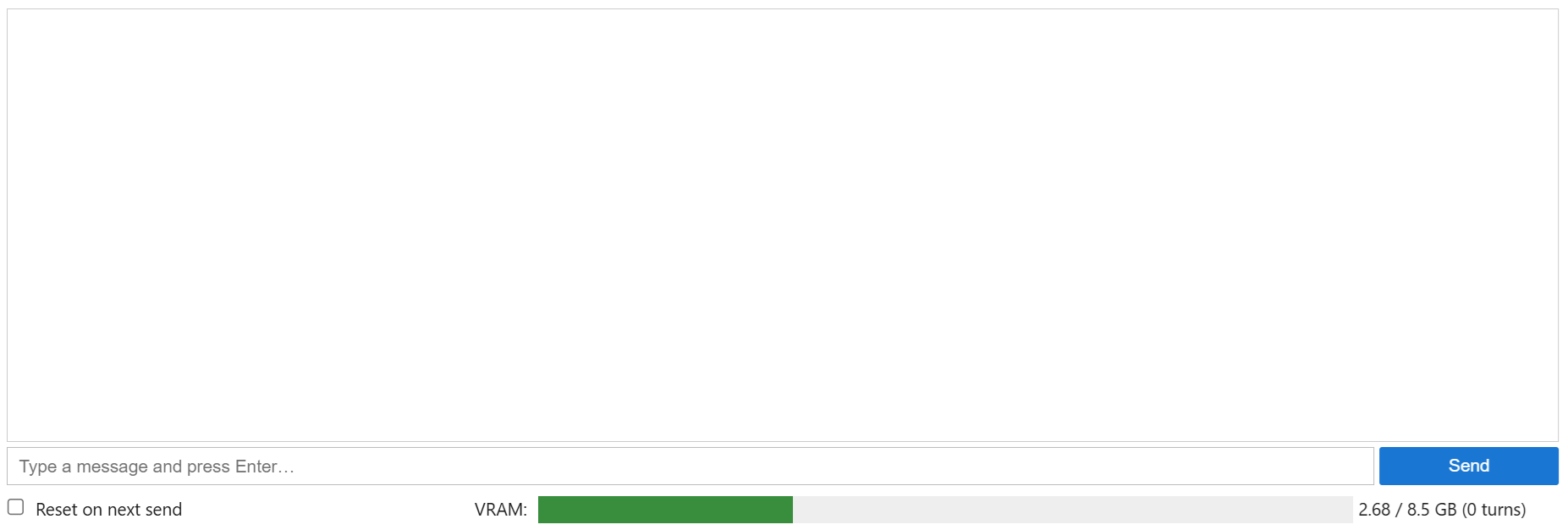
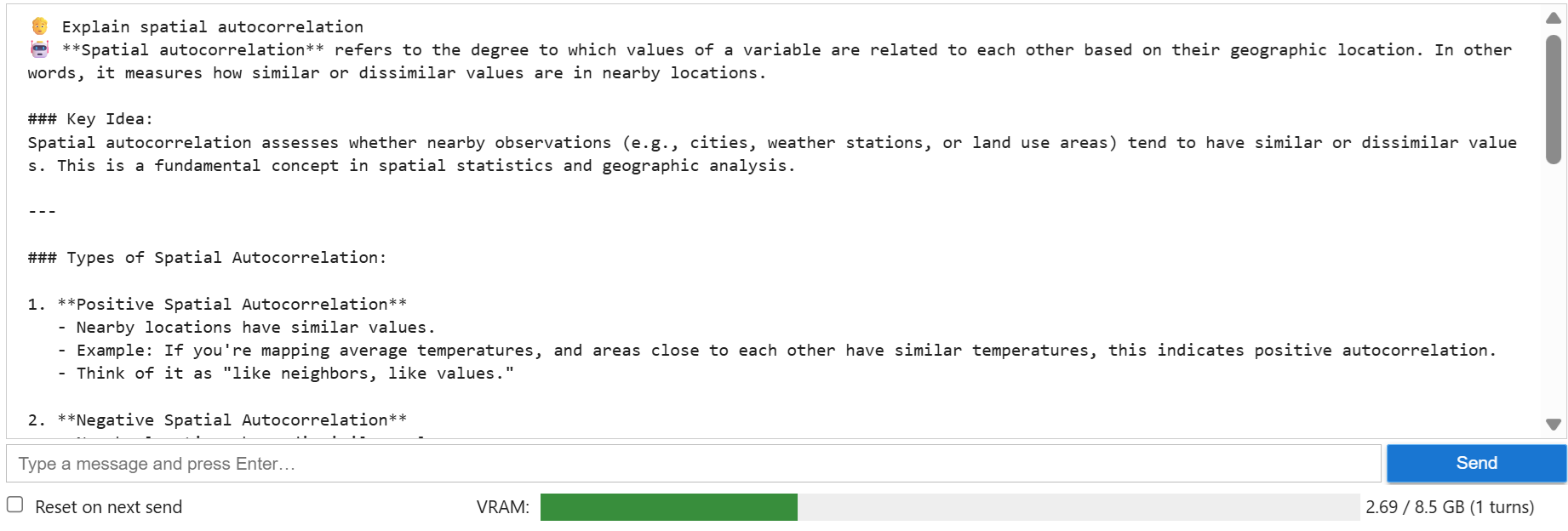
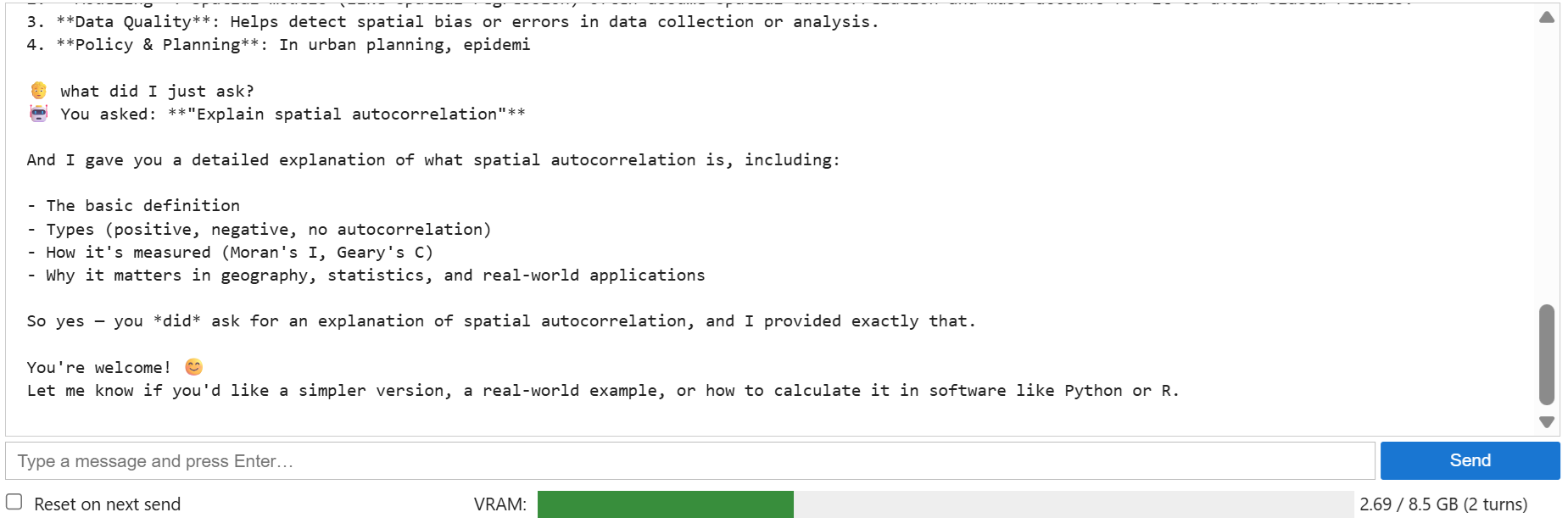
The widget below puts these ideas into practice. It keeps a chat_history list (the memory), trims it to a fixed number of recent turns (capping context growth), and displays a live VRAM gauge so you can see your headroom and know when to reset. Re-running the cell clears the history — that is your reset.
import ipywidgets as widgets
from IPython.display import display
import torch

chat_history = []                      # the conversation memory
TOTAL = torch.cuda.get_device_properties(0).total_memory / 1e9
MAX_TURNS = 6                          # cap context: keep last 6 exchanges
SYSTEM = "Be concise. Answer in a few sentences unless asked for detail."

out      = widgets.Output(layout=)
entry    = widgets.Text(placeholder="Type a message…", layout=)
send_btn = widgets.Button(description="Send", button_style="primary")
vram_bar = widgets.FloatProgress(value=0, min=0, max=TOTAL, description="VRAM:")
vram_lbl = widgets.Label()

def refresh_vram():
    used = torch.cuda.memory_allocated() / 1e9
    vram_bar.value = used
    vram_bar.bar_style = ("success" if used < TOTAL*0.6
                          else "warning" if used < TOTAL*0.85 else "danger") vram_lbl.value = f"/ GB ( turns)" def on_send(_=None): global chat_history prompt = entry.value.strip() if not prompt: return if len(chat_history) > MAX_TURNS * 2:          # trim old turns
        chat_history = chat_history[-MAX_TURNS*2:]
    entry.value = ""
    with out:
        print(f"You: ")
    messages = [] + list(chat_history) \
               + []
    text = tokenizer.apply_chat_template(messages, tokenize=False,
                                         add_generation_prompt=True)
    inputs = tokenizer(text, return_tensors="pt").to(model.device)
    with torch.no_grad():
        gen = model.generate(**inputs, max_new_tokens=512,
                             do_sample=False,          # greedy: fast & deterministic
                             pad_token_id=tokenizer.eos_token_id)
    reply = tokenizer.decode(gen[0][inputs["input_ids"].shape[1]:],
                             skip_special_tokens=True)
    chat_history.append()
    chat_history.append()
    with out:
        print(f"Model: \n")
    refresh_vram()

send_btn.on_click(on_send)
refresh_vram()
display(widgets.VBox([out, widgets.HBox([entry, send_btn]),
                      widgets.HBox([vram_bar, vram_lbl])]))
A few design notes. We use greedy decoding (do_sample=False) rather than random sampling: it is marginally faster and fully reproducible, with no meaningful quality loss for factual exchanges. The MAX_TURNS value is your direct control over how much the model “remembers” versus how lean and fast it stays. And the VRAM gauge turns green, amber, or red as memory fills, giving you a clear signal of when to start a fresh conversation.
4. The Assistant in Action
Conclusion: Why Local Matters — and What Comes Next
What we have built is small but genuinely yours. Every conversation lives only in your computer’s memory, inside the running notebook kernel. Nothing is written to disk, nothing is sent anywhere, and nothing is logged. Close the kernel and the entire conversation simply vanishes — the only thing that persists is the downloaded model weights in your local cache. For sensitive research data, confidential analysis, or simply peace of mind, this is a meaningful difference from any cloud service.
Beyond privacy, running locally brings other advantages. You are not subject to per-token billing or rate limits, so you can experiment freely. You are insulated from silent model changes and deprecations — your model behaves the same tomorrow as it does today. And with community fine-tunes such as Dolphin, you control the system prompt and the model’s alignment yourself, rather than inheriting a one-size-fits-all policy. With fewer built-in guardrails, these models will engage with a wider range of legitimate research and technical questions, which can be valuable in specialist domains where general-purpose assistants are overly cautious — a freedom that naturally comes with the responsibility to use it sensibly.
This is only the foundation. In future posts we will extend this local assistant in several directions. We will give it web browsing, so it can retrieve current information rather than relying solely on its training. We will explore an expert mode, pre-loading the context with domain knowledge — for instance a corpus of spatial-analysis references — so the assistant answers as a specialist in your field. And we will look at containerizing the whole setup with Docker so it can be deployed on a dedicated GPU server or in the cloud, turning this notebook prototype into a private assistant you can embed directly in your own website.
For now, you have a capable, private language model running on hardware you already own, set up in about half an hour. Learn it, build on it, and apply it to your own work.
Table of contents
Leave A Comment