
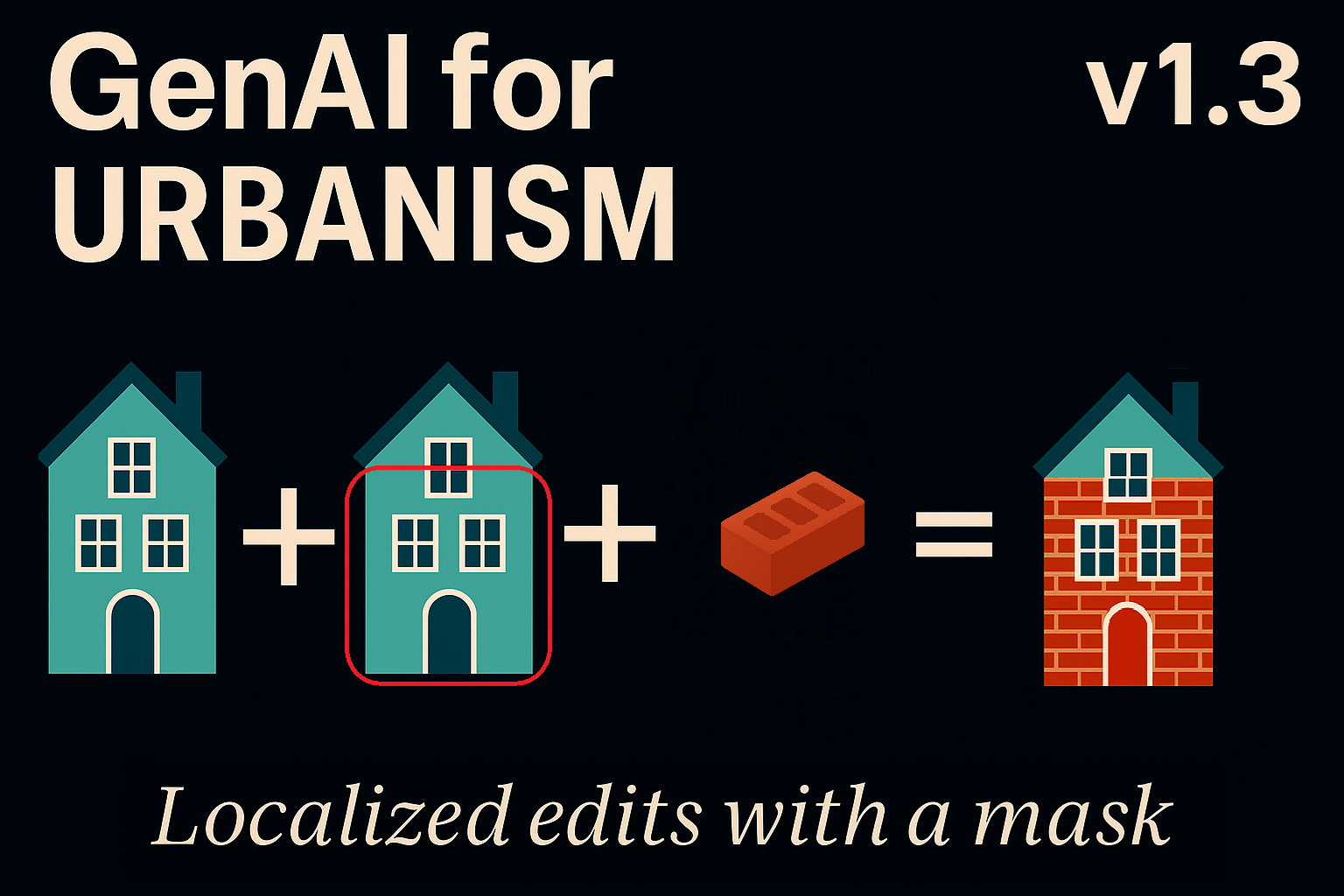
Highlights
- Adds a new Mask Editing Block enabling localized, structurally accurate edits while preserving the rest of the image.
- Introduces a Grow Mask utility with expand and blur parameters, plus visual mask preview.
- Replaces EmptyLatent with VAE Encode → Set Latent Noise to avoid global degradation.
- Mask block is optional: Blocks 1 and 2 remain unchanged for prompt-only and sequential workflows.
Qwen Image Edit for Urbanism continues to evolve into a practical, research-grade tool for architectural and urban experimentation. After the batch-processing capabilities introduced in v1.2, version 1.3 focuses on the feature most requested by designers and analysts: precise control over where edits occur.
In image-to-image workflows, uncontrolled changes are a common issue. Even a very specific prompt can lead diffusion models to reinterpret the whole scene. Version 1.3 introduces mask-restricted editing, allowing Qwen to modify only a selected region while preserving the rest of the image exactly as it is.
1. Why Masks Matter for Urban Editing
Until now, the workflow relied on Empty Latent to initialize diffusion. This approach is simple but has an unavoidable drawback:
The entire latent space is regenerated — even outside the region you want to modify.
This often produces familiar and unwanted side effects: façades shift slightly, lighting changes, road textures dissolve, or skies take on new tones, even when the prompt refers only to a specific object or surface. To address this, v1.3 reorganizes the initialization stage around:
VAE Encode → Set Latent Noise (masked)
This change restructures the model’s behavior:
| Component | Effect |
|---|---|
| VAE Encode | Converts the original image into latent space with high fidelity. |
| Set Latent Noise (with mask) | Adds noise only inside the mask, preserving everything else. |
| Mask-guided denoising | Qwen edits only where permitted; unmasked areas remain pixel-identical. |
This leads to crisp preservation of buildings, street furniture, sky, shadows, and lighting outside the edited zone. Localized edits integrate naturally: you can green a façade, test a bike lane, adjust a plaza boundary, or replace a storefront without disturbing the rest of the street.
2. Prompt-Only vs. Reference-Guided Mask Editing
Version 1.3 supports both textual and visual control of masked edits.
A. Prompt-Only Mask Editing
You draw a mask, provide a prompt, and Qwen modifies only the selected region. This works especially well for operations such as:
-
replacing asphalt with permeable paving,
-
adding vegetation,
-
transforming a façade material.
B. Mask Editing With a Reference Image
A second image may be supplied to guide structure, texture, or color. This enables:
-
borrowing material samples,
-
transplanting vegetation from one scene to another,
-
matching architectural textures,
-
transferring lighting characteristics locally.
Both modes are interchangeable, and both respect the mask boundary. Masks drawn directly in ComfyUI are typically sharp, binary shapes. Diffusion models, however, perform best when mask boundaries are soft and slightly extended.
Version 1.3 introduces a Grow Mask node with two parameters:
-
Expand: increases the mask outward, helping cover tiny gaps or irregular brush strokes and preventing thin seams at the edge.
-
Blur Radius: softens the boundary, allowing Qwen to blend new and existing textures more naturally.
Together, these parameters define the effective “influence zone” of the edit.
To make mask-based editing easier to control, v1.3 includes a preview step.
The workflow converts the (expanded and blurred) mask into an image and displays it directly in the UI.
This makes it straightforward to confirm:
-
whether the boundary is clean,
-
whether the expansion radius is appropriate,
-
whether the blur transition is smooth enough.
For tasks involving building edges, curbs, signage, crosswalks, or paving boundaries, this preview dramatically improves accuracy.
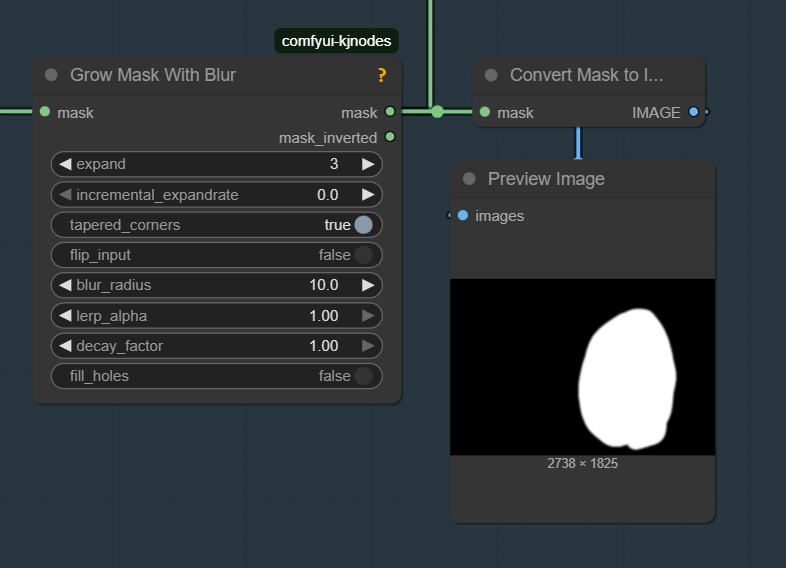
The grow mask with blur and his preview
3. How the v1.3 Workflow Fits Into the Existing System
The mask block replaces only the latent-initialization stage.
Everything else — prompts, reference conditioning, sampling, and the full QwenEdit pipeline — remains unchanged.
Simplified pipeline:
Base Image
     ↓
User Mask → Grow Mask → Preview Mask
     ↓
VAE Encode
     ↓
Set Latent Noise (masked)
     ↓
Qwen Edit Pipeline
     (prompt-only or reference-guided)
     ↓
VAE Decode
     ↓
Final Output
This structure makes editing predictable and reproducible, but it is important to clarify how v1.3 is organized internally. The workflow is now composed of three completely separate blocks, and each block loads its own model:
-
Block 1: Single-image edit (prompt-only or prompt + reference)
-
Block 2: Sequential multi-image editing
-
Block 3: Mask-based editing (new in v1.3)
All three blocks coexist in the same workflow, and the user simply chooses which one to run.
In ComfyUI, this is done by right-clicking the group frame and selecting Active or Bypass.
Only the active block executes; the others are skipped. Nothing else in the pipeline needs to be changed.
Because the blocks are independent, they can also be combined. For example, the user may activate the sequential loader from Block 2 and route its output into the mask-editing block (Block 3) to run a full masked transformation on a batch of images.
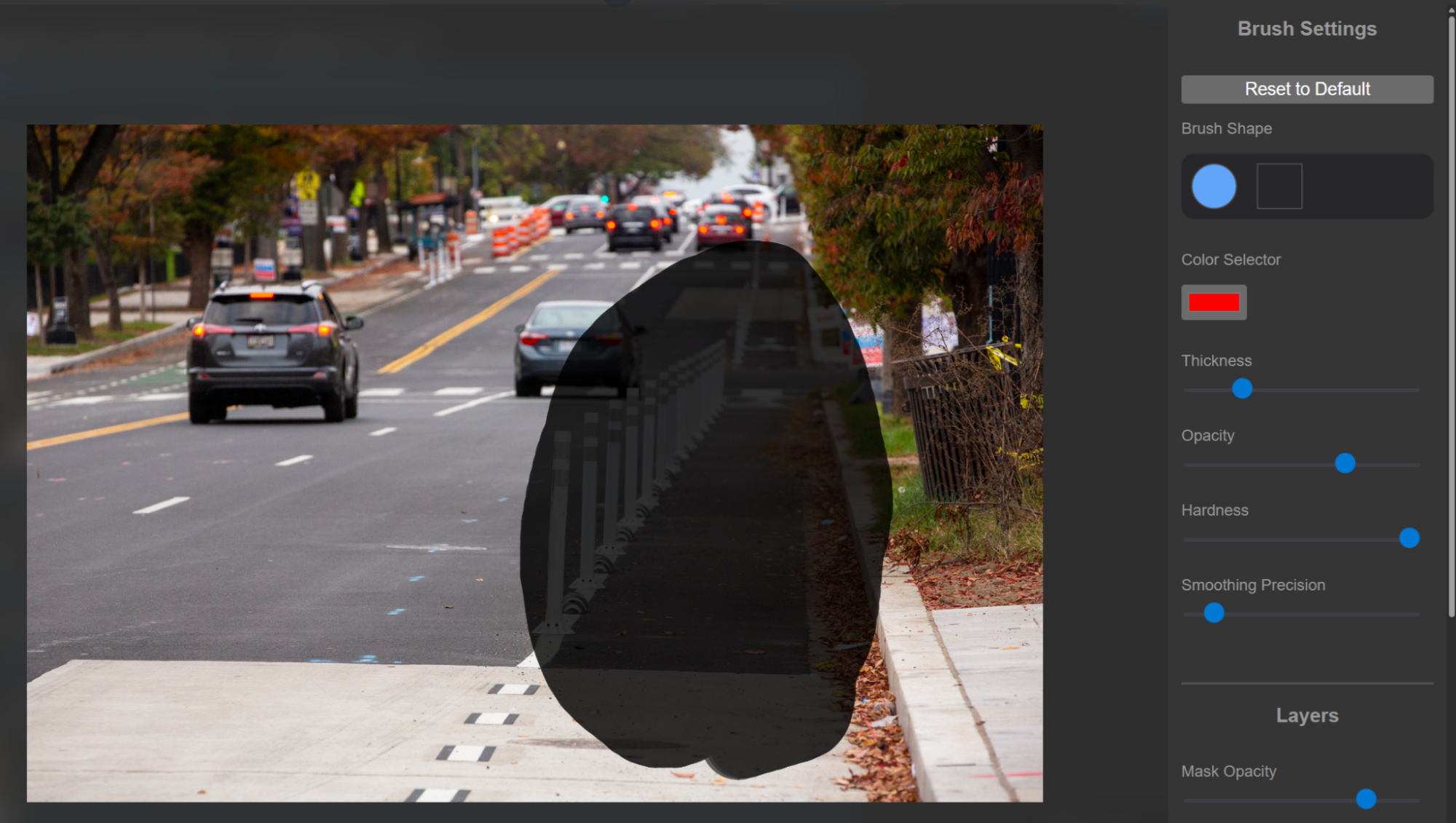
To create the mask itself, the user loads the base image in Load Image 1, right-clicks the preview, and selects Open in Mask Editor. The drawn mask is then processed by the Grow Mask node before entering the latent-noise stage, ensuring smooth boundaries and predictable behavior.
4. Experimentation
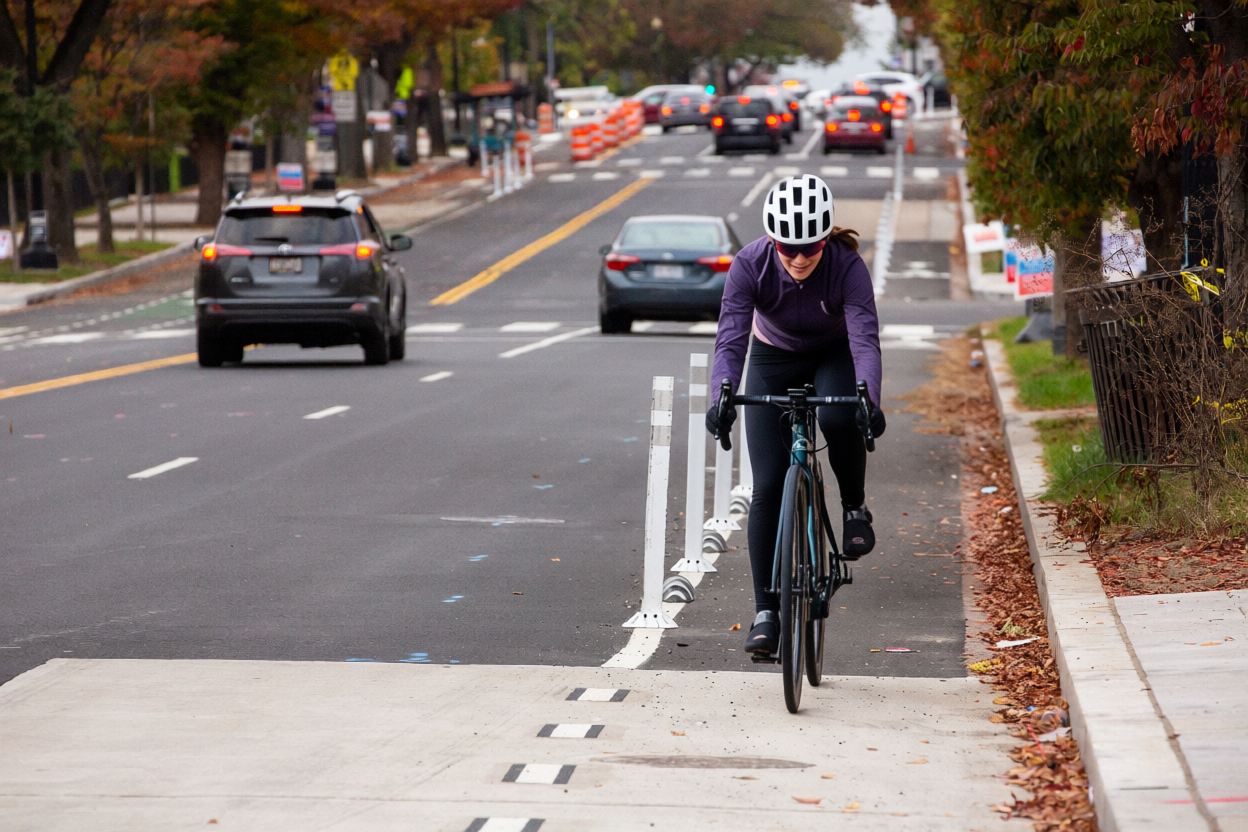
To test the new mask-based editing block, we start by defining the editable region directly in ComfyUI. After loading the base image, the user right-clicks the preview and selects “Open in Mask Editor”, then paints the area where the new cyclist should appear. Before the edit, this part of the street is empty.
Once the mask is created, it flows through Block 3: the Grow Mask node expands and softens the boundary, the workflow encodes the base image, and noise is added only inside the masked zone. A second image containing a cyclist is provided as a reference, and the prompt instructs Qwen to place the rider onto the bicycle lane.
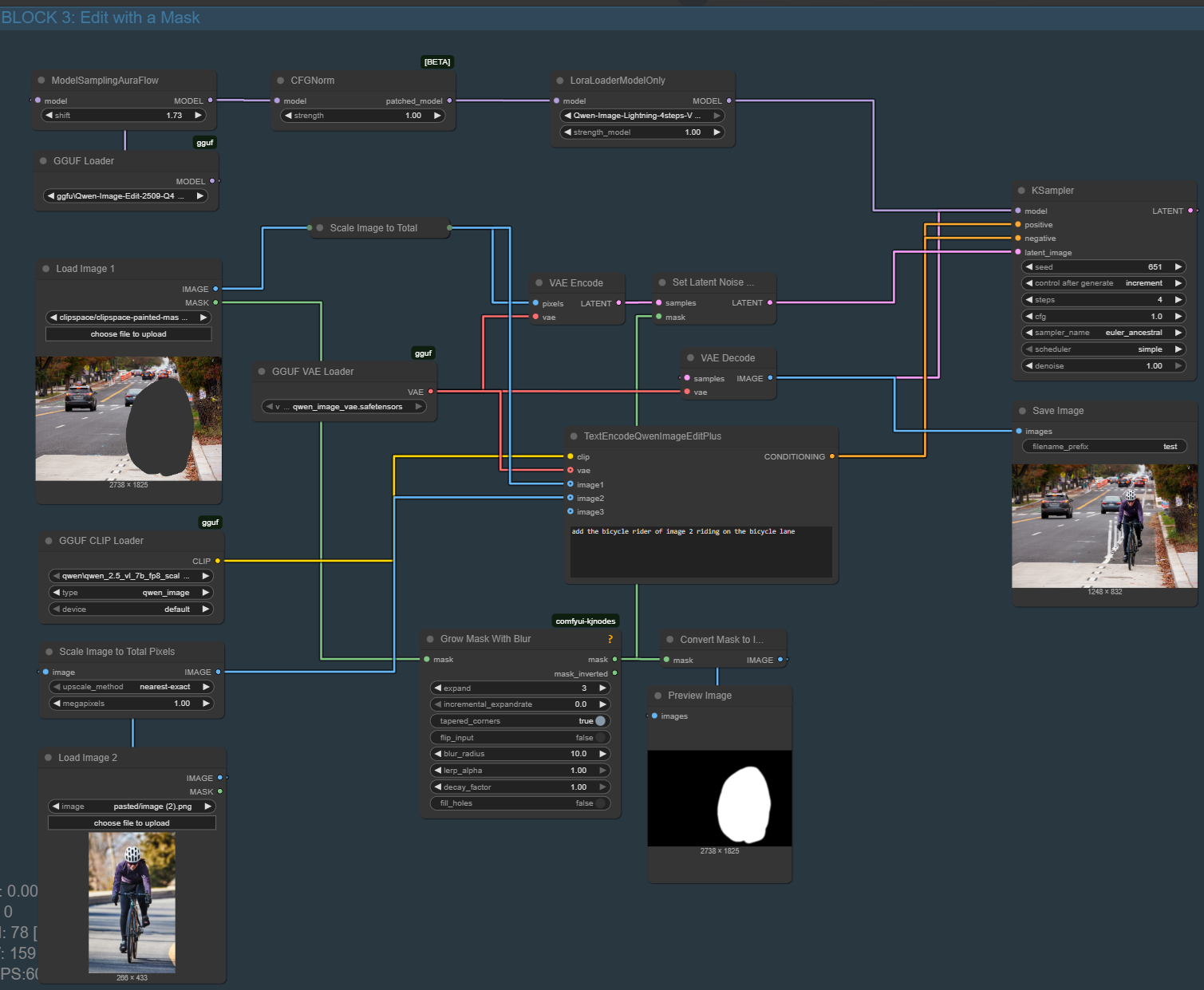
The result is a localized insertion: the cyclist from Image 2 is generated precisely inside the masked area, while the rest of the photograph remains unchanged. This demonstrates the core purpose of Block 3 — precise, mask-controlled edits that do not disturb the surrounding urban context.
5. Download the Workflow
You can download the ready-to-use ComfyUI JSON graph that we built in this post Qwen Image Edit For Urbanism v1.3 from the link below or from our git repository and load it directly into your workspace using File → Load → Workflow.
Table of contents
Leave A Comment